You’ve probably heard a developer say “It works on my machine!” — and then watched the whole team spend hours figuring out why it breaks everywhere else. This frustrating problem is exactly what Docker was built to solve.
In this first post of our Docker for Beginners series, we’ll explain what Docker is, why containerization matters, and give you a clear roadmap of everything you’ll learn across this series. No prior DevOps experience needed — let’s get into it.
The “Works on My Machine” Problem
Imagine you build a web app on your laptop. It runs perfectly. You hand it to a colleague or deploy it to a server — and it crashes immediately. Why? Because your laptop has a specific version of Python, a particular set of installed libraries, and environment variables that the other machine simply doesn’t have. Software is deeply sensitive to its surroundings.
Traditionally, teams dealt with this by writing long setup guides, using heavy virtual machines, or just suffering through inconsistencies. Docker gives us a much better answer: ship the environment along with the code.
The core idea: Docker packages your application and everything it needs to run into a single portable unit called a container. That container runs identically on any machine that has Docker installed — your laptop, a teammate’s computer, or a cloud server halfway around the world.
What Exactly Is a Container?
A container is a lightweight, isolated environment that holds your application along with all its dependencies — libraries, configuration files, and the runtime it needs. Think of it as a self-sufficient box that your app lives inside.
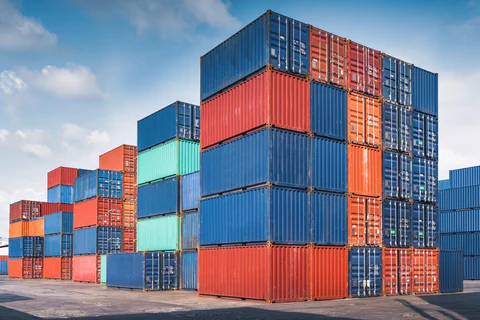
The shipping container analogy: Before standardized metal shipping containers, moving goods across the world was chaotic. Every port, ship, and truck had different rules and sizes. The invention of the standard shipping container meant cargo could move seamlessly across all of them without repacking. Docker containers work the exact same way for software — your app is packaged once and runs anywhere.
Containers vs. Virtual Machines: What’s the Difference?
You might be thinking: “Don’t virtual machines already solve this?” Sort of — but containers are dramatically lighter and faster. Here’s the key difference:
| Virtual Machine | Docker Container | |
|---|---|---|
| Size | Gigabytes (includes full OS) | Megabytes (shares host OS) |
| Startup time | Minutes | Seconds |
| Resource usage | Heavy on RAM & CPU | Lightweight and efficient |
| Isolation | Very strong | Strong but shared kernel |
| Best for | Running different operating systems | Apps, microservices, DevOps |
The bottom line: virtual machines virtualize the entire hardware stack, while containers only virtualize the application layer. This makes containers much faster to start, easier to scale, and cheaper to run.
Key Docker Terms You’ll See in This Series
Before going further, here are the essential terms every Docker beginner should know:
- Container — A running instance of a packaged application and its environment.
- Image — A read-only blueprint used to create containers. Think of it like a recipe.
- Dockerfile — A plain text file with step-by-step instructions to build a Docker image.
- Docker Hub — A public registry where you can find and share pre-built images.
- Docker Engine — The core software that builds and runs containers on your machine.
- Volume — Persistent storage that keeps your data safe even after a container stops.
We’ll explore all of these in depth throughout the series.
Why Do Developers Love Docker?
Docker has become a standard tool in modern software development, and for very practical reasons:
1. Consistency across environments: Dev, staging, and production all run the exact same container. The “it works on my machine” problem disappears entirely.
2. Fast team onboarding. A new teammate can spin up your entire app stack with a single command instead of following a 20-step environment setup guide.
3. Perfect for microservices You can break your app into small, independent services where each runs in its own container — making it far easier to scale and maintain individual parts.
4. Cloud-native by default. Every major cloud platform — AWS, Google Cloud, Azure — supports Docker containers out of the box. Learning Docker is learning the language of modern cloud deployment.
5. Massive ecosystem Docker Hub hosts hundreds of thousands of pre-built images. Need a MySQL database, an Nginx web server, or a Redis cache? Pull a ready-made image and have it running in seconds.
Your Complete Learning Roadmap
This series is structured so that each post builds on the last. By the end, you’ll go from zero Docker knowledge to confidently deploying containerized apps to the cloud. Here’s what’s ahead:
Episode 1 — Introduction to Docker & Containerization (You are here) What Docker is, why containers exist, how they compare to VMs, and the big picture of the ecosystem.
Episode 2 — Installing Docker & Running Your First Container Install Docker Desktop on Mac, Windows, or Linux. Pull your first image from Docker Hub and run a real container in minutes.
Episode 3 — Understanding Docker Images Learn how images are built in layers, what base images are, and how to find and pull images from registries.
Episode 4 — Writing Your First Dockerfile Build a custom Docker image for a simple application from scratch — step by step.
Episode 5 — Container Networking & Ports How containers communicate with each other and with the outside world — port binding, bridge networks, and more.
Episode 6 — Volumes & Persistent Data Keep your data safe when containers stop and restart. Learn the difference between bind mounts and volumes.
Episode 7 — Docker Compose: Running Multi-Container Apps Run an entire app stack (web server + database + cache) with a single docker-compose up command.
Episode 8 — Deploying Docker to the Cloud Push your image to Docker Hub and deploy a live containerized application to AWS, GCP, or a VPS.
What You Need to Follow Along
This series is designed for complete beginners. You only need:
- A laptop or desktop running Mac, Windows, or Linux
- Basic comfort with using the command line (we’ll explain every command we use)
- Curiosity and a willingness to experiment
That’s it. No prior DevOps, Linux, or cloud experience required.
What’s Next?
Now that you understand what Docker is and why it matters, it’s time to get your hands dirty. In Episode 2, we’ll walk through installing Docker Desktop and running your very first container — from zero to a live running app in under 10 minutes.
Found this helpful? Share it with a fellow developer just getting started with DevOps. And subscribe to the DockerDive newsletter so you don’t miss the next episode.