

HTML (HyperText Markup Language) is the foundation of every website. It provides the structure and content that browsers render into the web pages you see every day. In this comprehensive guide, we’ll explore HTML5 fundamentals, from basic document structure to semantic elements that make your websites more accessible and SEO-friendly.
This is Part 1 of our HTML5 series, covering document structure, text elements, and semantic HTML. Part 2 will cover forms, multimedia, and advanced HTML5 features.
What is HTML?
HTML (HyperText Markup Language) is a markup language that defines the structure and content of web pages. It’s not a programming language — it doesn’t have logic or calculations. Instead, it uses tags to mark up content and tell the browser how to display it.
Key Points:
- HTML provides structure and meaning to content
- CSS handles presentation and styling
- JavaScript adds interactivity and behavior
- These three technologies work together to create modern websites
HTML vs HTML5
HTML5 is the latest version of HTML, introduced in 2014. It brought significant improvements:
New Features in HTML5:
- Semantic elements (
<header>,<nav>,<article>, etc.) - Multimedia elements (
<video>,<audio>) - Canvas and SVG for graphics
- Improved form controls
- Better accessibility support
- Local storage APIs
- Geolocation and other APIs
When we say “HTML” in modern web development, we typically mean HTML5.
HTML Syntax and Structure
Understanding HTML Tags
HTML uses tags to mark up content. Most tags come in pairs:
<tagname>Content goes here</tagname>
Components:
- Opening tag:
<tagname> - Content: The text or elements inside
- Closing tag:
</tagname>
Example:
<h1>This is a heading</h1>
<p>This is a paragraph.</p>
Self-Closing Tags
Some tags don’t have content and are self-closing:
<img src="image.jpg" alt="Description">
<br>
<hr>
<input type="text">
<meta charset="UTF-8">
Note: In HTML5, you can write self-closing tags without the trailing slash:
<img src="image.jpg" alt="Description"> ✅
<img src="image.jpg" alt="Description" /> ✅ (also valid, XHTML style)
HTML Attributes
Attributes provide additional information about elements:
<tagname attribute="value">Content</tagname>Example:
<a href="https://example.com" target="_blank">Visit Example</a>
<img src="photo.jpg" alt="A beautiful sunset" width="500">
<div class="container" id="main-content">Content</div>
Common Attributes:
class: Assigns one or more CSS classesid: Unique identifier for the elementsrc: Source file (for images, scripts, etc.)href: Link destinationalt: Alternative text for imagestitle: Tooltip textstyle: Inline CSS styles
HTML Comments
Comments are notes in your code that browsers ignore:
<!-- This is a comment -->
<!--
    Multi-line comment
    Can span multiple lines
    Useful for documentation
-->
Use comments to:
- Explain complex sections
- Temporarily disable code
- Leave notes for other developers
- Mark sections of your document
Basic HTML Document Structure
Every HTML document follows a standard structure:
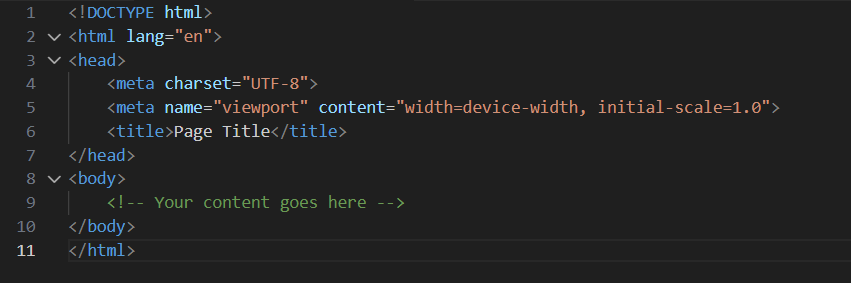
Let’s break down each part:
The DOCTYPE Declaration
<!DOCTYPE html>Purpose:
- Tells the browser this is an HTML5 document
- Ensures the browser renders in standards mode
- Always the first line of your HTML file
Historical Note: Older HTML versions had complex DOCTYPE declarations. HTML5 simplified it to just <!DOCTYPE html>.
The HTML Element
<html lang="en">
    <!-- All content goes here -->
</html>
The root element that contains all other elements.
The lang attribute:
- Specifies the document’s language
enfor English,esfor Spanish,frfor French, etc.- Helps screen readers pronounce content correctly.
- Improves SEO
The Head Section
Contains metadata — information about the document that doesn't appear on the page.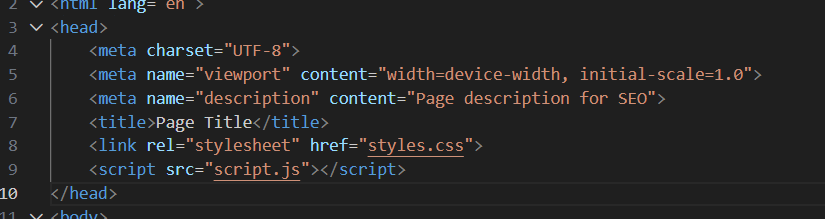
Essential Head Elements
Character Encoding:
<meta charset="UTF-8">- Defines character encoding (UTF-8 supports all languages)
- Should be the first element in
<head> - Prevents character display issues
Viewport Meta Tag:
<meta name="viewport" content="width=device-width, initial-scale=1.0">- Essential for responsive design
- Tells mobile browsers how to scale the page
width=device-width: Match screen widthinitial-scale=1.0: Start at 100% zoom
Title:
<title>My Awesome Website - Home</title>- Appears in browser tab
- Shown in search results
- Used when bookmarking
- Should be unique for each page
- Recommended length: 50-60 characters
Description:
<meta name="description" content="Learn web development with our comprehensive tutorials and guides.">- Appears in search results
- Summarizes page content
- Recommended length: 150-160 characters
Linking CSS:
<link rel="stylesheet" href="styles.css">- Links external stylesheets
- Can have multiple
<link>tags - Best practice: Put in
<head>
Linking JavaScript:
<script src="script.js"></script>
<!-- or -->
<script src="script.js" defer></script>- Can be in
<head>or before</body> deferattribute loads script after HTML parsesasyncattribute loads script asynchronously
The Body Section

Contains all visible content:
- Text, images, videos
- Links, forms, buttons
- Everything users see and interact with
HTML Text Elements
Headings
HTML provides six levels of headings:
<h1>Main Heading - Most Important</h1>
<h2>Subheading</h2>
<h3>Sub-subheading</h3>
<h4>Level 4 Heading</h4>
<h5>Level 5 Heading</h5>
<h6>Level 6 Heading - Least Important</h6>
Best Practices:
- Use only one
<h1>per page (usually the page title) - Don’t skip heading levels (don’t jump from
<h2>to<h5>) - Use headings for structure, not styling
- Headings create a document outline for accessibility
Example Structure:
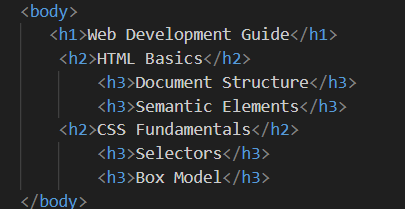
Paragraphs
<p>This is a paragraph. It can contain multiple sentences and will automatically wrap based on the browser width.</p>

<p>Each paragraph element creates a new block of text with spacing before and after.</p>
Characteristics:
- Block-level element (starts on new line)
- Browser adds spacing automatically
- Text wraps naturally within the container
Line Breaks and Horizontal Rules
Line Break:
<p>First line<br>Second line<br>Third line</p>- Creates a line break within text
- Self-closing tag
- Use sparingly (CSS is better for spacing)
Horizontal Rule:
<p>Section one content</p>
<hr>
<p>Section two content</p>- Creates a horizontal line
- Represents thematic break
- Self-closing tag
Text Formatting Elements
Bold and Strong:
<b>This text is bold</b>
<strong>This text is strong (important)</strong><b>: Visual bold, no semantic meaning<strong>: Indicates importance, screen readers emphasize- Prefer
<strong>for meaningful emphasis
Italic and Emphasis:
<i>This text is italic</i>
<em>This text is emphasized</em><i>: Visual italic, no semantic meaning<em>: Indicates emphasis, screen readers stress- Prefer
<em>for meaningful emphasis
Other Formatting:
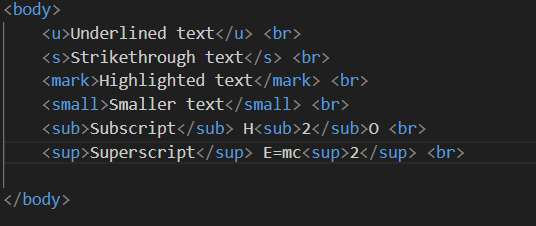
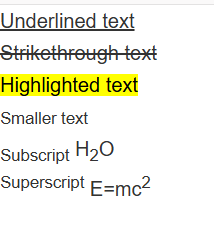
Code and Preformatted Text:
<code>const x = 10;</code>
<pre>
    This text preserves
        spaces and
            line breaks
</pre>
<kbd>Ctrl + C</kbd>
<samp>Sample output</samp>
Quotes:
<blockquote cite="https://source.com">
    This is a long quotation that will be displayed as a block element.
</blockquote>

<p>He said, <q>This is an inline quotation.</q></p>
Well, now you have a clear idea of how the document is structured and a few HTML tags. In Part 2, we will discuss a few more tags and how they can be used in development.