When you type a URL into your browser and press Enter, an incredible sequence of events happens in milliseconds.
Understanding how the web works is fundamental to becoming a proficient web developer. In this comprehensive guide, we’ll explore client-server architecture, HTTP/HTTPS protocols, the request-response cycle, status codes, and headers.
What is the Web?
The World Wide Web (WWW) is a system of interconnected documents and resources accessible through the Internet. While often used interchangeably, the internet and the web are different:
- The Internet: The physical infrastructure of networks, cables, routers, and protocols that connect computers worldwide
- The Web: An application that runs on top of the Internet, allowing us to access web pages, images, videos, and other resources through browsers
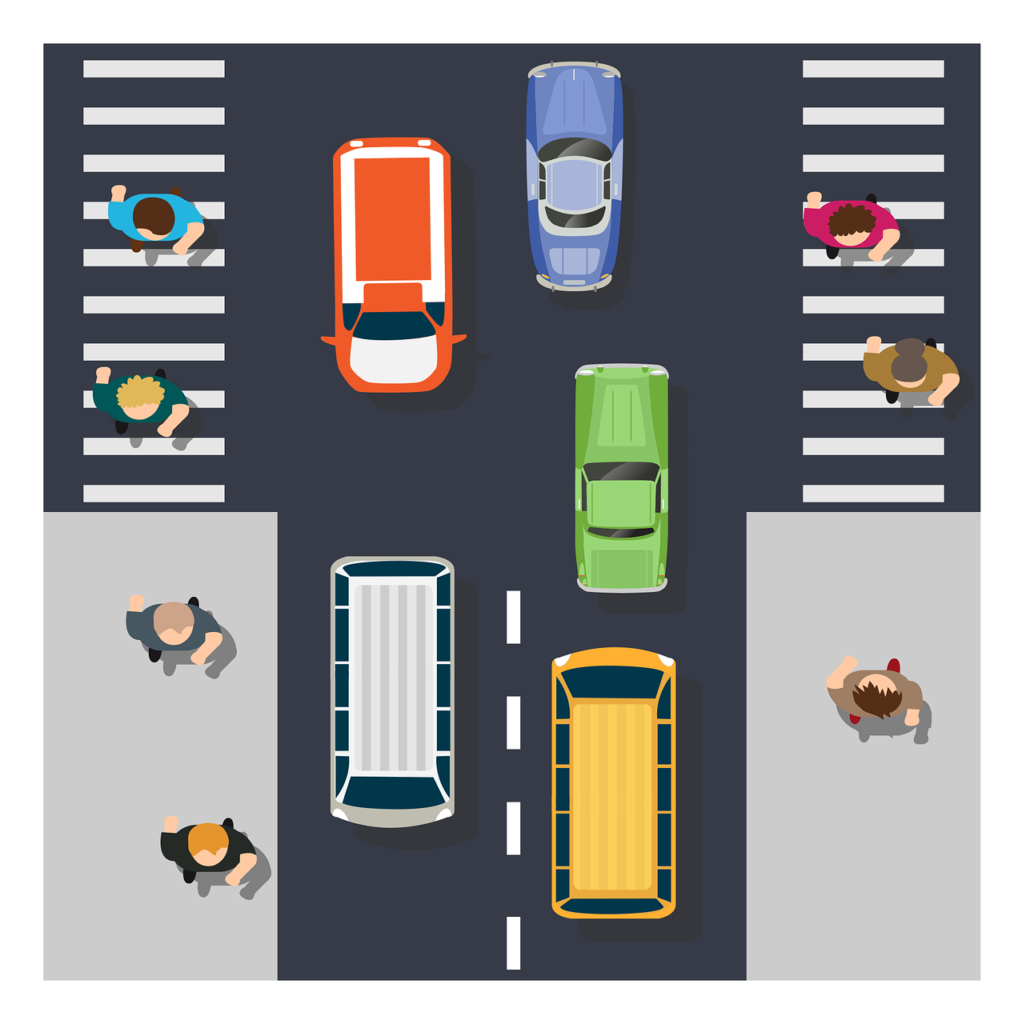
Think of the internet as the road system, and the web as the cars traveling on those roads.
Client-Server Architecture: The Foundation of the Web
The web operates on a client-server model, one of the most fundamental concepts in web development.
What is a Client?
A client is any device or application that requests resources from a server. Common examples include:
Examples include:
- Web browsers (Chrome, Firefox, Safari, Edge)
- Mobile applications
- Command-line tools like cURL
- IoT devices
When you open your browser and navigate to a website, your browser acts as the client, requesting information from remote servers.
What is a Server?
A server is a powerful computer that stores and serves web resources to clients. Servers run specialized software designed to:
- Listen for incoming requests
- Process those requests
- Send back appropriate responses
- Handle multiple requests simultaneously
Servers can host websites, APIs, databases, files, and more. Popular web server software includes Apache, Nginx, and Node.js.
How Clients and Servers Communicate
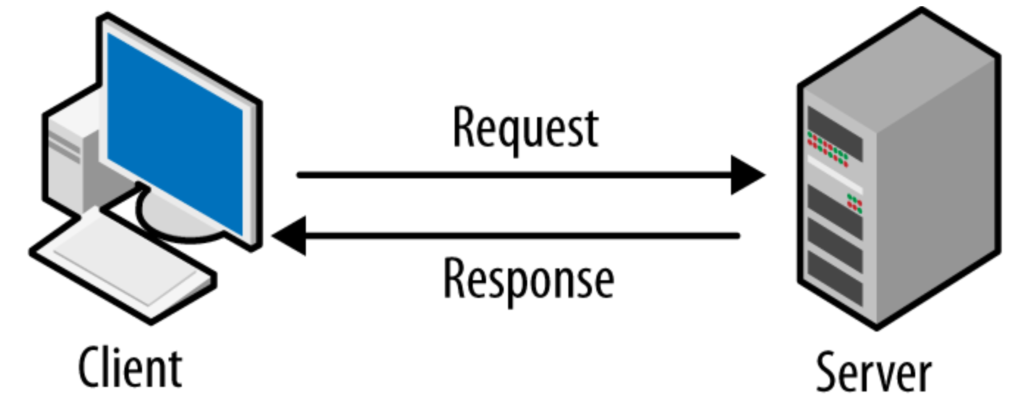
The communication between clients and servers follows a request-response pattern:
- Client sends a request: “I want to see the homepage of example.com”
- Server processes the request: Finds the requested resource
- Server sends a response: Returns the HTML, CSS, JavaScript, and other files
- Client renders the response: Browser displays the webpage
This happens constantly as you browse the web, often multiple times for a single webpage. (Refer the image attached above)
Understanding URLs: Web Addresses
Before diving into HTTP, let’s understand URLs (Uniform Resource Locators), the addresses we use to locate resources on the web.
A URL has several components:

Breaking this down:
- Protocol (
https://): How to communicate with the server = Tells the browser which rules to use when talking to the server.http→ plain text (not secure)https→ encrypted using TLS (secure)
- Subdomain (
www): A subdivision of the main domain- Used to organize or separate services.
- Common examples:
www.example.com→ websiteapi.example.com→ APIadmin.example.com→ admin panel
- Domain (
example.com): The human-readable server address- Behind the scenes, DNS converts this to an IP address
- example.com → 93.184.216.34
- Port (
:443): The specific port on the server (this part is usually hidden)- A port identifies which service on the server should handle the request.
- Common ports:
80→ HTTP443→ HTTPS22→ SSH3306→ MySQL
- Path (
/blog/article): The specific resource location on the server or the routes- Tells the server what you want.
- Historically mapped to folders/files.
- In modern apps (Node, Spring, Rails, etc.), it maps to routes/controllers.
- Query String (
?id=123): Additional parameters sent to the server- Additional parameters sent to the server
- Used to send key-value pairs.
- Common uses
- Filtering (
?category=tech) - Pagination (
?page=2) - Search (
?q=wcag) - Identifiers (
?id=123)
- Filtering (
- Fragment (
#section2): A specific section within the page- A specific section within the page
- Used by the browser only
- Not sent to the server
- Typical uses:
- Jump to a section in a page
- Single-Page Apps (Angular/React) routing
- Tabs or anchors
DNS: Translating Domain Names to IP Addresses
Computers don’t understand domain names like “example.com” — they use IP addresses (like 93.184.216.34) to identify each other on the network.
The Domain Name System (DNS) acts as the internet’s phonebook, translating human-readable domain names into IP addresses:
- You type “example.com” in your browser
- Your browser asks a DNS server: “What’s the IP address for example.com?”
- DNS responds: “It’s 93.184.216.34”
- Your browser connects to that IP address
This process is called DNS resolution and happens before any HTTP communication begins.
HTTP: The Protocol of the Web
HTTP (HyperText Transfer Protocol) is the foundation of data communication on the web. It defines how messages are formatted and transmitted between clients and servers.
Key Characteristics of HTTP
Stateless Protocol: Each request is independent. The server doesn’t remember previous requests from the same client unless we implement additional mechanisms (like cookies or sessions).
Text-Based: HTTP messages are human-readable text, making them easy to debug and understand.
Request-Response Model: Every interaction consists of a request from the client and a response from the server.
HTTP Request Structure
An HTTP request contains several parts:
GET /blog/article HTTP/1.1
Host: www.example.com
User-Agent: Mozilla/5.0 (Windows NT 10.0; Win64; x64)
Accept: text/html,application/json
Accept-Language: en-US,en;q=0.9
Connection: keep-alive
Components of an HTTP Request:
- Request Line: Method, path, and HTTP version
- Headers: Metadata about the request
- Body: Data sent with the request (for POST, PUT methods)
HTTP Methods
HTTP defines several methods that indicate the desired action:
- GET: Retrieve data from the server (most common)
- POST: Send data to create a new resource
- PUT: Update an existing resource
- PATCH: Partially update a resource
- DELETE: Remove a resource
- HEAD: Like GET, but only retrieves headers
- OPTIONS: Check what methods are supported
Example scenarios:
- Loading a webpage:
GET /index.html - Submitting a form:
POST /submit-form - Updating profile info:
PUT /user/123 - Deleting a comment:
DELETE /comment/456
HTTP Response Structure
After processing a request, the server sends back a response:
HTTP/1.1 200 OK
Date: Wed, 28 Jan 2026 10:30:00 GMT
Content-Type: text/html; charset=UTF-8
Content-Length: 1234
Server: Apache/2.4.41

<!DOCTYPE html>
<html>
<head>
    <title>Example Page</title>
</head>
<body>
    <h1>Hello, World!</h1>
</body>
</html>
Components of an HTTP Response:
- Status Line: HTTP version, status code, and status message
- Response Headers: Metadata about the response
- Response Body: The actual content (HTML, JSON, image data, etc.)
HTTP Status Codes: Understanding Server Responses
Every HTTP response includes a status code that indicates the result of the request. Status codes are grouped into five categories:
1xx – Informational Responses
These indicate that the request was received and is being processed:
- 100 Continue: The server has received the request headers
- 101 Switching Protocols: Server is switching to a different protocol
You’ll rarely encounter these in everyday web development.
2xx – Successful Responses
The request was successfully received, understood, and accepted:
- 200 OK: Standard successful response
- 201 Created: Resource successfully created (common with POST)
- 204 No Content: Success, but no content to return
- 206 Partial Content: Only part of the resource is returned
3xx – Redirection Messages
Further action is needed to complete the request:
- 301 Moved Permanently: Resource has permanently moved to a new URL
- 302 Found: Temporary redirect to a different URL
- 304 Not Modified: Cached version is still valid
- 307 Temporary Redirect: Like 302, but the method must not change
- 308 Permanent Redirect: Like 301, but the method must not change
4xx – Client Error Responses
The request contains bad syntax or cannot be fulfilled:
- 400 Bad Request: Malformed request syntax
- 401 Unauthorized: Authentication required
- 403 Forbidden: Server understands but refuses to authorize
- 404 Not Found: The requested resource doesn’t exist
- 405 Method Not Allowed: HTTP method not supported for this resource
- 429 Too Many Requests: Rate limiting in effect
5xx – Server Error Responses
The server failed to fulfill a valid request:
- 500 Internal Server Error: Generic server error
- 502 Bad Gateway: Invalid response from upstream server
- 503 Service Unavailable: Server temporarily unavailable
- 504 Gateway Timeout: Upstream server didn’t respond in time
Real-world example:
When you visit a webpage that doesn’t exist, the server returns a 404 status code, and your browser displays a “Page Not Found” message.
HTTP Headers: Metadata for Requests and Responses
HTTP headers provide additional information about the request or response. They’re key-value pairs that control various aspects of the HTTP transaction.
Common Request Headers
Host: Specifies the domain name of the server
Host: www.example.com
User-Agent: Identifies the client software
User-Agent: Mozilla/5.0 (Windows NT 10.0; Win64; x64) AppleWebKit/537.36Accept: Specifies what content types the client can process
Accept: text/html,application/jsonAccept-Language: Preferred languages for the response
Accept-Language: en-US,en;q=0.9,es;q=0.8Cookie: Sends cookies to the server
Cookie: sessionId=abc123; userId=456Authorization: Contains credentials for authentication
Authorization: Bearer eyJhbGciOiJIUzI1NiIsInR5cCI6IkpXVCJ9...Referer: The URL of the page that linked to the current request
Referer: https://www.google.com/search?q=web+developmentCommon Response Headers
Content-Type: Specifies the media type of the response body
Content-Type: text/html; charset=UTF-8
Content-Type: application/json
Content-Type: image/pngContent-Length: Size of the response body in bytes
Content-Length: 2048Set-Cookie: Sends cookies from server to client
Set-Cookie: sessionId=abc123; HttpOnly; SecureCache-Control: Directives for caching mechanisms
Cache-Control: max-age=3600, public
Cache-Control: no-cache, no-store, must-revalidateLocation: Used in redirects to specify the new URL
Location: https://www.example.com/new-pageServer: Information about the server software
Server: nginx/1.18.0Access-Control-Allow-Origin: CORS header allowing cross-origin requests
Access-Control-Allow-Origin: *
Access-Control-Allow-Origin: https://trusted-site.com
HTTPS: Secure HTTP Communication
HTTPS (HTTP Secure) is the encrypted version of HTTP. It uses SSL/TLS protocols to encrypt communication between the client and the server.
Why HTTPS Matters
- Security: Prevents eavesdropping and man-in-the-middle attacks
- Privacy: Protects sensitive data like passwords and credit card numbers
- Data Integrity: Ensures data isn’t tampered with during transmission
- Trust: Browsers mark HTTPS sites as secure, building user confidence
- SEO: Google favors HTTPS sites in search rankings
How HTTPS Works
- Client initiates connection: Browser requests a secure connection
- Server presents certificate: Contains server’s public key
- Certificate validation: Browser verifies certificate authenticity
- Key exchange: Client and server establish encryption keys
- Encrypted communication: All data is encrypted using agreed-upon keys
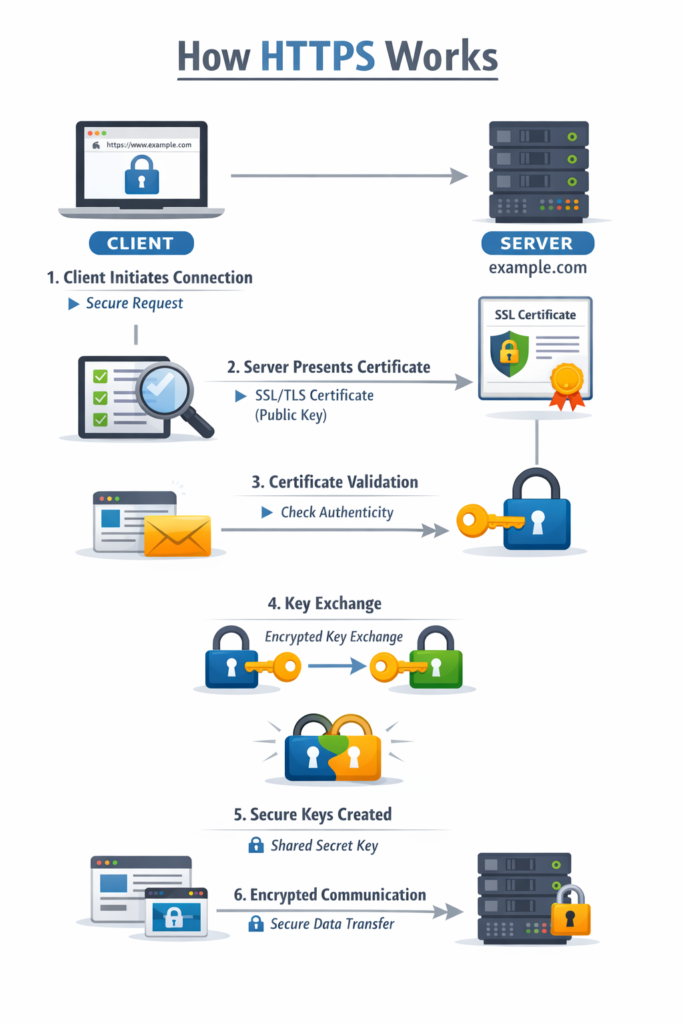
Look for the padlock icon in your browser’s address bar — that indicates an HTTPS connection.
HTTP vs HTTPS
| Feature | HTTP | HTTPS |
|---|---|---|
| Port | 80 | 443 |
| Security | Unencrypted | Encrypted |
| Certificate | Not required | Required |
| Performance | Faster (slightly) | Minimal overhead |
| SEO | Lower ranking | Better ranking |
| Trust | Lower | Higher |
The Complete Request-Response Cycle
Let’s trace what happens when you visit https://www.example.com/blog
Step 1: DNS Resolution
- The browser checks the cache for example.com’s IP address
- If not cached, it queries the DNS server
- DNS returns IP address: 93.184.216.34
Step 2: TCP Connection
- The browser establishes a TCP connection to the server on port 443
- Three-way handshake ensures a reliable connection
Step 3: TLS Handshake (for HTTPS)
- Client and server negotiate encryption
- The server sends the SSL certificate
- Encryption keys are established
Step 4: HTTP Request
GET /blog HTTP/1.1
Host: www.example.com
User-Agent: Mozilla/5.0...
Accept: text/html
Step 5: Server Processing
- The server receives and parses the request
- Determines the requested resource
- Prepares the response
Step 6: HTTP Response
HTTP/1.1 200 OK
Content-Type: text/html
Content-Length: 5420

<!DOCTYPE html>
<html>...
Step 7: Browser Rendering
- The browser receives HTML
- Parses HTML and discovers additional resources (CSS, JS, images)
- Makes additional requests for these resources
- Renders the complete page
Step 8: Connection
- Connection may stay open (keep-alive) for additional requests
- Or close after the response
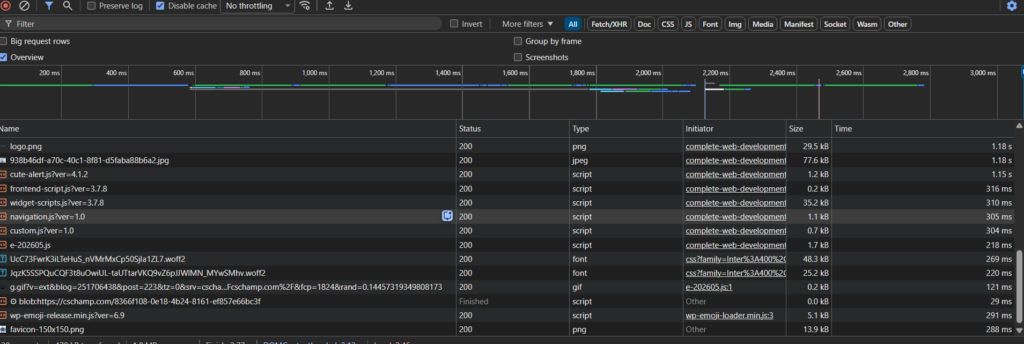
Practical Example: Viewing HTTP Traffic
In Chrome or Firefox:
- Open Developer Tools (F12 or right-click → Inspect)
- Click the “Network” tab
- Refresh the page
- Click on any request to see headers, response, timing, etc.
What you’ll observe:
- Multiple requests for a single webpage
- Different file types (HTML, CSS, JavaScript, images)
- Status codes for each request
- Request and response headers
- Loading times and sizes
This is an invaluable tool for debugging and understanding web communication.
Key Takeaways
Understanding how the web works is essential for every web developer. Here’s what you should remember:
- Client-Server Architecture: Clients request resources, servers provide them
- DNS: Translates domain names to IP addresses
- HTTP Methods: GET retrieves data, POST sends data, PUT updates, DELETE removes
- Status Codes: 2xx success, 3xx redirect, 4xx client error, 5xx server error
- Headers: Provide metadata about requests and responses
- HTTPS: Encrypted version of HTTP for secure communication
- Request-Response Cycle: Every web interaction follows this pattern
Practice Exercise
Open your browser’s Developer Tools and:
- Navigate to any website
- Examine the Network tab
- Identify the HTTP methods used
- Find different status codes
- Inspect request and response headers
This hands-on exploration will solidify your understanding of HTTP communication.
What’s Next?
Now that you understand how the web works at a fundamental level, you’re ready to start building for it. In the next lesson, we’ll set up your development environment with the tools you need to create websites.
Next Lesson: Development Environment Setup – Configure your code editor, browser tools, and create your first web project
One thought on “How the Web Works: Understanding Client-Server Architecture and HTTP Protocol”